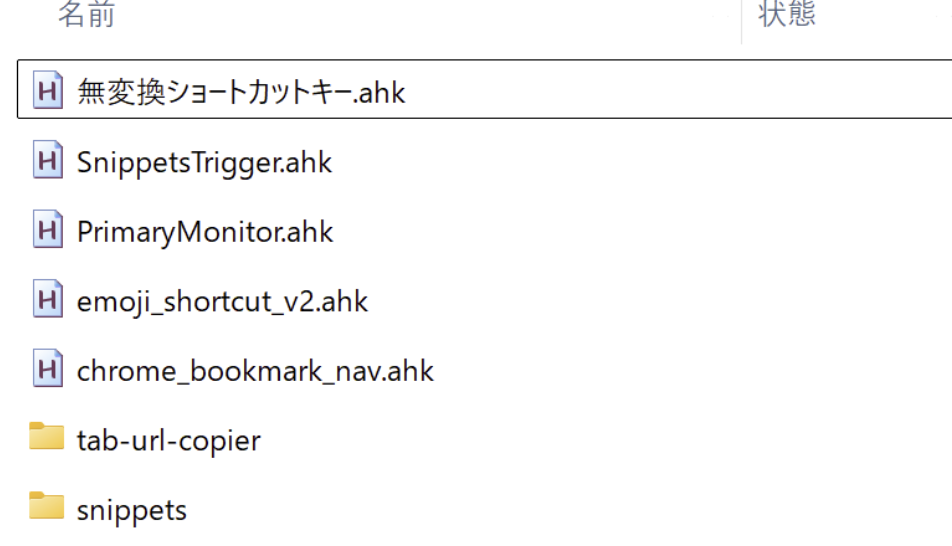
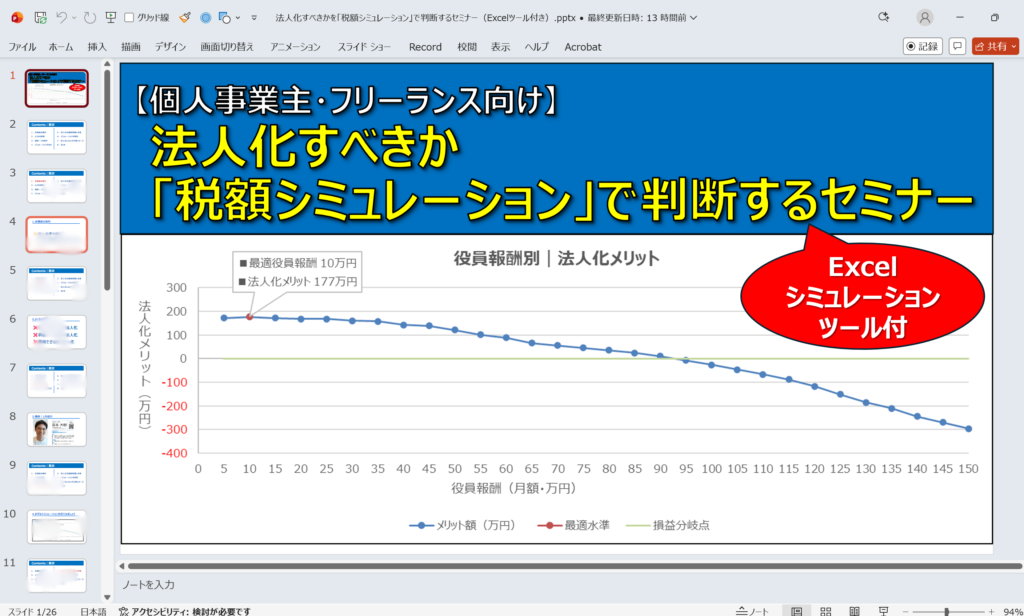
YouTubeで配信した内容に関する詳細です。
AutoHotkeyの使い方
こちらの記事をご参照ください。
あわせて読みたい
Chromeブックマークバーのショートカット|AutoHotkeyでキー操作を快適に
「ブックマークバーのショートカットキーが使いにくい…」「矢印キーだと、押しづらい…」「何か、カスタマイズ方法はないかな…」 Chromeを使っていますが、ブックマーク…
Googleスプレッドシートのショートカット設定
以下をAutoHotkeyファイルにコピペいただければ。
コード詳細はこちら
#Requires AutoHotkey v2.0
#SingleInstance Force

; ============================================================
; Google Sheets Quick Shortcuts - Faster
;
; Alt + W : グリッド線
; Alt + Q : テキストの折り返し
;
; Alt + 0 : 200%
; Alt + C : 150%
; Alt + 1 : 100%
; Alt + 7 : 75%
; Alt + 5 : 50%
;
; ・URL取得なし
; ・アドレスバー操作なし
; ・Ctrl+Aなし
; ・日本語IME対策として検索語だけクリップボード貼り付け
; ============================================================

global sheetsBusy := false

#HotIf WinActive("ahk_exe chrome.exe")

$!w::
{
    RunSheetsCommand("グリッド線")
}

$!q::
{
    RunSheetsCommand("テキストの折り返し")
}

$!0::
{
    RunSheetsCommand("200%")
}

$!c::
{
    RunSheetsCommand("150%")
}

$!1::
{
    RunSheetsCommand("100%")
}

$!7::
{
    RunSheetsCommand("75%")
}

$!5::
{
    RunSheetsCommand("50%")
}

#HotIf


; ============================================================
; Google Sheets の「メニューを検索」からコマンドを実行
; ============================================================
RunSheetsCommand(command)
{
    global sheetsBusy

    if sheetsBusy
        return

    sheetsBusy := true
    savedClipboard := ClipboardAll()

    try {
        KeyWait "Alt"

        A_Clipboard := command

        if !ClipWait(0.5)
            return

        SendInput "!/"
        Sleep 80

        SendInput "^v"
        Sleep 100

        SendInput "{Enter}"
    }
    finally {
        A_Clipboard := savedClipboard
        sheetsBusy := false
    }
}